How to work with widgets
This section describes technical details about working with widgets, including widget module structure, settings storage, adaptivity, and the widget instantiation process.
For a comprehensive widget development guide, see: Creating a Widget Tutorial
What modules to create and Why
There are 3 main modules to create, such as:
[widget-name]-preview.tsx,json-settingsor[widget-name]-settings.tsx[widget-name].tsx.
Where [widget-name] is the name of the widget you are creating.
For convenience, let's consider in this article that the widget is called widget.
widget-preview.tsx
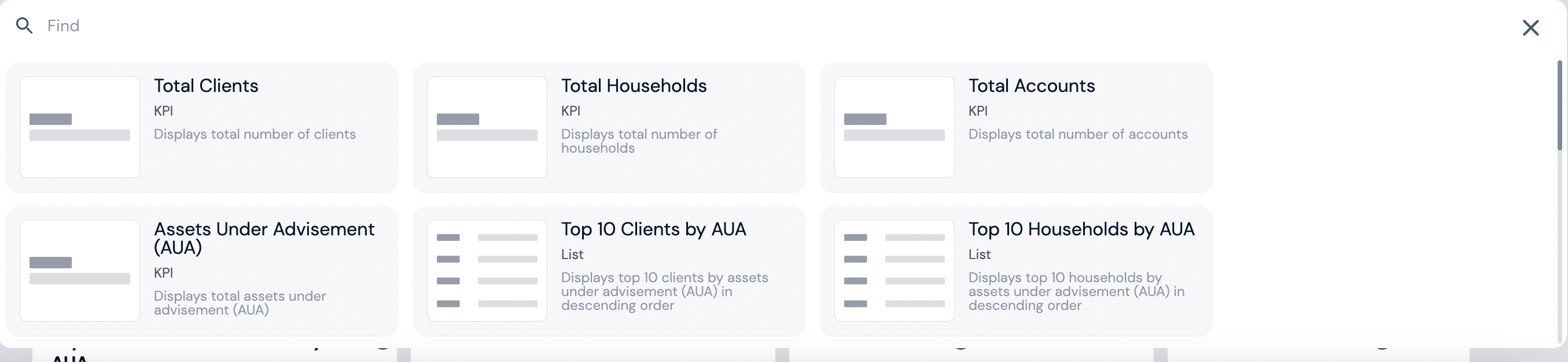
The widget-preview.tsx is what is displayed when the widget is selected during dashboard setup.
Important feature is the image must be in .svg format and fit the size of width: 88; height: 64.
json-settings
Widget configuration documentation you can find here.
[widget-name]-widget-settings.tsx
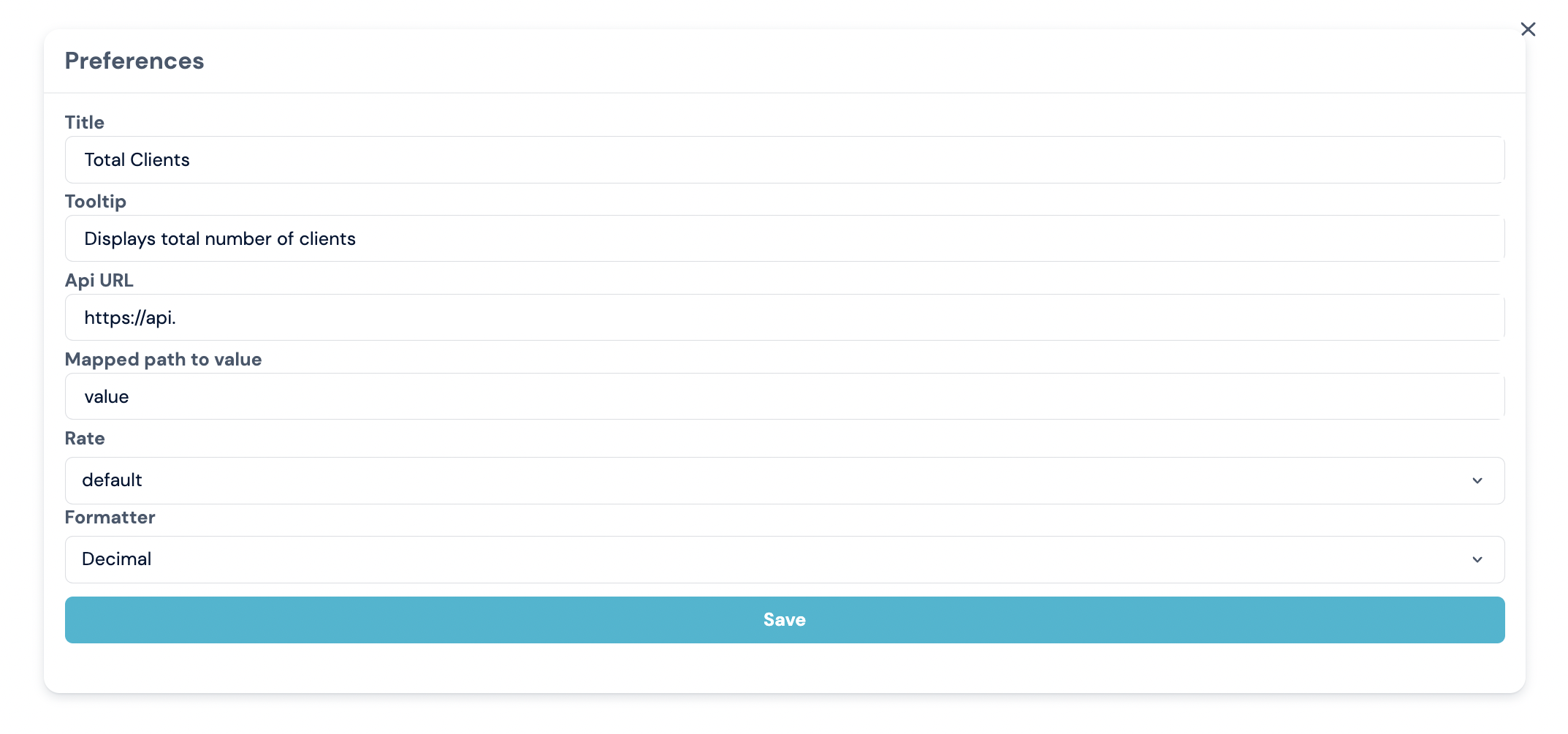
The is a set of settings fields for the widget. The widget may not contain settings, but the section cannot be empty, it is necessary to return at least a stub. It is only obligatory for local development if there are json-settings.
There is an onSubmit method in the parameters of the settings component, which should be called after filling out the form and the settings will be saved on the fe-be.
More information here
widget.tsx
The widget.tsx is the main code of the widget. Required for any type of widget.
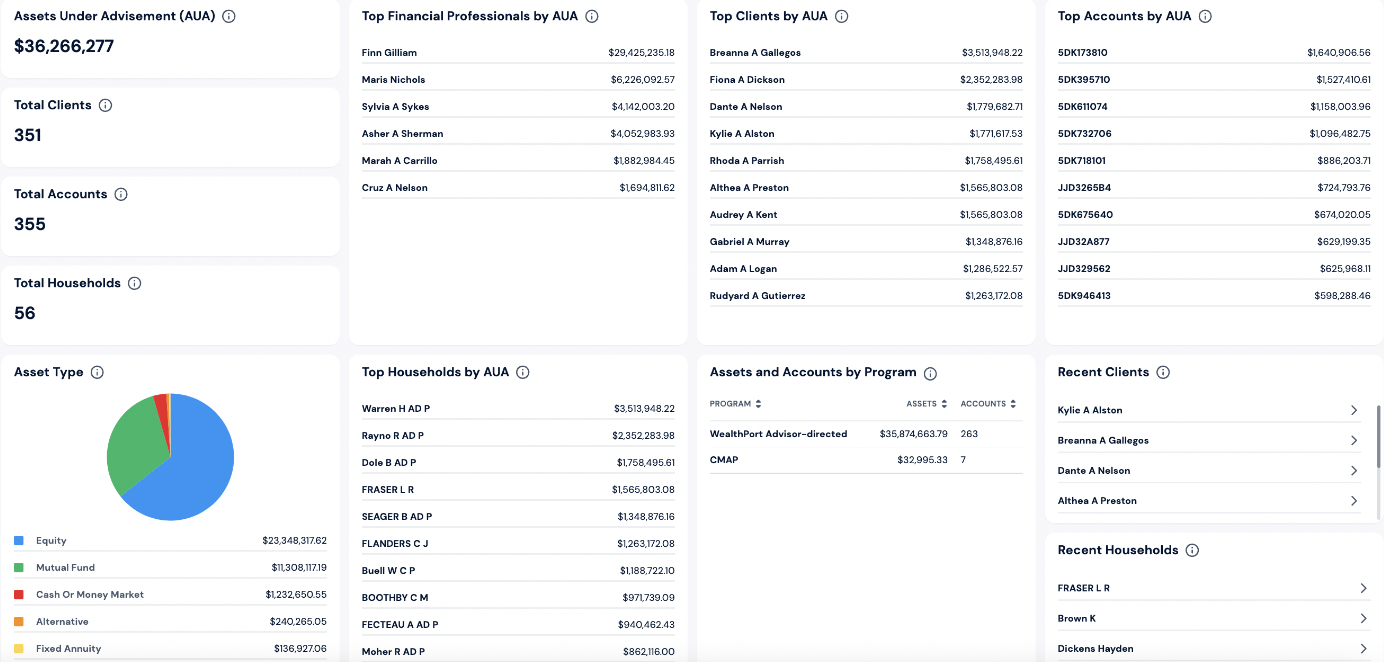
For example it can contain imageUrl and title.
export interface IWidgetProps extends CLoudProps<unknown>
{
    apiUrl?: string;
    imageUrl?: string
    title?: string
}

const Widget = ({ apiUrl, httpclient, imageurl, title }: IWidgetProps) => {
    return (
        <BLock>
            <Subtitle2>{title}</Subtitle2>
            <Image src={imageUrl} />
        </Block>
    );
};

export default Widget;
How to save settings
Saving to the fe-be server, a layer of customization and storage of dashboard data.
The request body contains meta-information about the dashboard itself and all the widgets with settings, query example:
{
  "meta": {
    "sharedFor": [],
    "couldBeEditedByRoles": [],
    "couldBeEditedByUsers": [],
    "_id": "1",
    "name": "Films",
    "group": "default",
    "id": "f2bd7c94-de27-46bd-bf72-7648e44a5984",
    "isVisible": true,
    "isShared": false,
    "creatorId": "admin",
    "role": "admin"
  },
  "widgets": [
    {
      // Widget position on the dashboard
      "layout": {
        "xs": {
          "i": "e855f618-e858-456f-bb53-2d4d3582598d",
          "x": 0,
          "y": 0,
          "minW": 4,
          "minH": 3,
          "w": 6,
          "h": 5
        },
        "sm": {
          "w": 6,
          "h": 5,
          "x": 0,
          "y": 25,
          "i": "e855f618-e858-456f-bb53-2d4d3582598d",
          "minW": 4,
          "minH": 3
        },
        "md": {
          "w": 6,
          "h": 5,
          "x": 3,
          "y": 29,
          "i": "e855f618-e858-456f-bb53-2d4d3582598d",
          "minW": 4,
          "minH": 3,
          "moved": false,
          "static": false
        },
        "lg": {
          "i": "e855f618-e858-456f-bb53-2d4d3582598d",
          "x": 0,
          "y": 0,
          "minW": 4,
          "minH": 3,
          "w": 6,
          "h": 5
        }
      },
      "_id": "628db7d460a82c001c0c5e49",
      "type": "VENDOR_FilmList",
      "widgetId": "e855f618-e858-456f-bb53-2d4d3582598d",
      // body with widget settings
      "props": {
        "title": "Top 10 Will Smith Films",
        "order": "desc",
        "apiUrl": "https://tomatoes-rating.com/actors/will-smith"
      }
    }
  ]
}
If everything is okay, then the response is returned with all the data and changes made, and the new widget data is saved.
How to work with adaptivity
The ui-kit breakpoint model is used by default. More information you can find here.
How widgets are instantiating
Steps of inserting widgets on the example of a dashboard widget:
-
request meta-information about the dashboard and all the widgets it contains
type VENDOR_FilmList. -
Check the cache to see if the module's code has been loaded before.
-
If it's not loaded, insert the asynchronous script:
<script
  type="text/javascript"
  data-webpack="VENDOR_FilmList"
  async
  src="https://{STORE_BASE_URL}/{widgetId}/remoteEntry.js"
></script>
-
Query the location where the widgets are stored
STORE_BASE_URL/widgetId/remoteEntry.jsmore about variables here. -
After loaded, the widget becomes usable and added to our bundle and can be used as part of the application. All this is based on the technology Module Federation.
-
If the instance was loaded before, then we just start using the previously downloaded widget code.