App States
A widget rarely has data to show the instant it mounts. It has to fetch it, and that fetch can be slow, come back empty, or fail. Your widget should gracefully handle all three cases — loading, no data, and error — rather than rendering a blank card or crashing the widget.
The widget template ships with three built-in placeholder states for exactly this purpose. They already match the platform UI, so using them keeps your widget visually consistent with the rest of the dashboard with no extra styling work. You can preview each one directly in the template by selecting it from the state dropdown, and you should wire them into your widget as you build so its real behavior lines up with the platform look from day one.
Previewing the states
Every widget scaffolded from the template exposes the three states right off the bat. Open the running widget and use the state dropdown to switch between Loading, No Data, and Error to see exactly how each one renders before you hook up your own data. Use these as the baseline for the states in your own app so everything stays aligned with the platform UI.
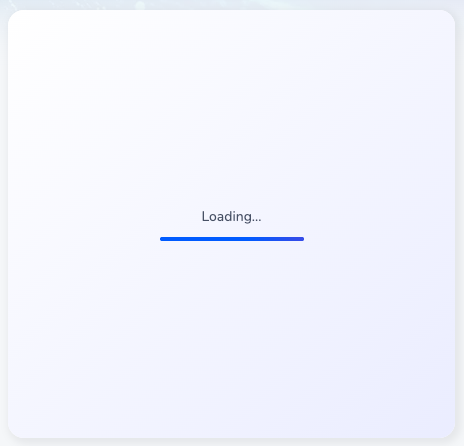
Loading
Show the loading state while data is being fetched — during the initial mount and on any subsequent refresh. It gives the user immediate feedback that the widget is working instead of showing an empty card.
No Data
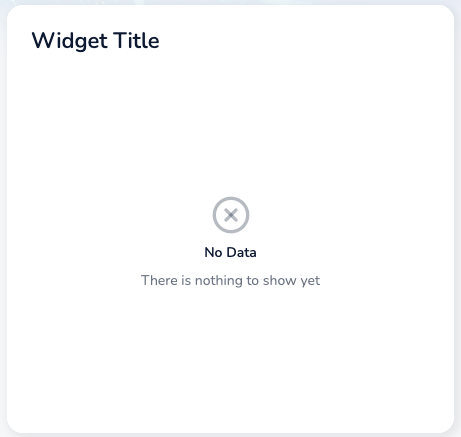
Show the no-data (empty) state when a request succeeds but returns nothing to display — for example a contact with no records yet, or a filter that matches nothing. This is a normal, expected outcome, not a failure, so it reads as a calm empty message rather than an error.
Error
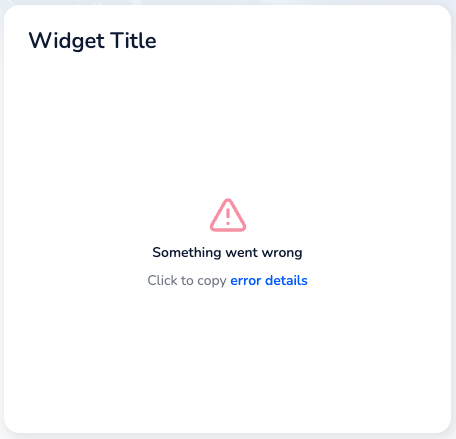
Show the error state when a request fails or returns something the widget can't render. It tells the user something went wrong and lets them copy the error details for support, instead of leaving the widget blank or breaking the dashboard around it.
Using them as you build
Treat these states as first-class parts of your widget, not an afterthought:
- Default to loading. Render the loading state until your first request resolves.
- Branch on the result. On success, show your data — or the no-data state if the response is empty. On failure, show the error state.
- Cover refreshes too. If your widget polls or refetches, keep surfacing the appropriate state on later requests, not just the first one.
Wiring these in from the start — and previewing them with the dropdown as you go — keeps your widget consistent with the platform UI and robust in front of real, unpredictable data.