Run the Setup wizard
Customize your template by running the setup wizard:
Steps:
-
In your terminal, run:
npm run setup -
Follow the prompts:
-
Widget type: Enter
1for dashboard.Widget type? Default: 1- 0 for platform- 1 for dashboard- 2 for universal -
Widget name: Enter your microapp's name in PascalCase (e.g.,
MyMicroapp).Widget name? (PascalCase) -
Vendor name: Enter your company's name.
Vendor name? -
Widget ID: Paste the Project ID from your GitLab repository.
To find it, open your repository, click the three-dot menu, and select Copy project ID.
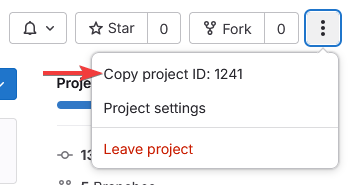 Widget ID?
 -
Repository URL: Paste your GitLab repository URL.
Repository URL?
Once all prompts are complete, the wizard will automatically rename files, update configuration values, and prepare the project for development.
NOTE: If you’re curious about what the repository structure looks like under the hood, check out [[Widget Template Repository Structure]].