Create a project repository from a template
In this first section, we’ll use a project template to set up a microapp project repository within your vendor's GitLab folder.
Steps:
-
Navigate to your vendor folder in GitLab.
-
Click on the New Project.
-
On the next page, select choose the Create from template.
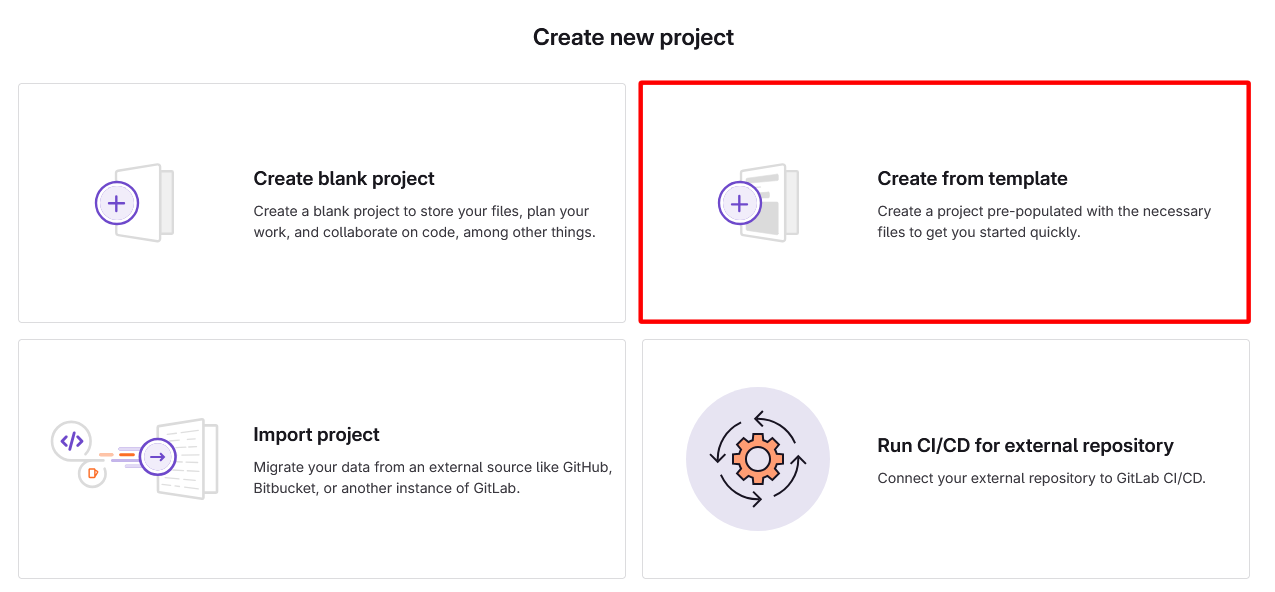
TIP: Using a template saves time and ensures that every microapp project starts with the same structure, tools, and best practices.
-
Switch to the Group tab.
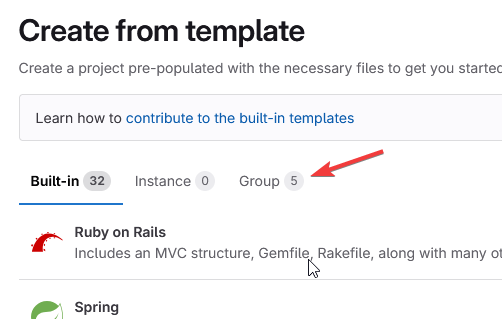
-
Find
widgets-template. Click Use template.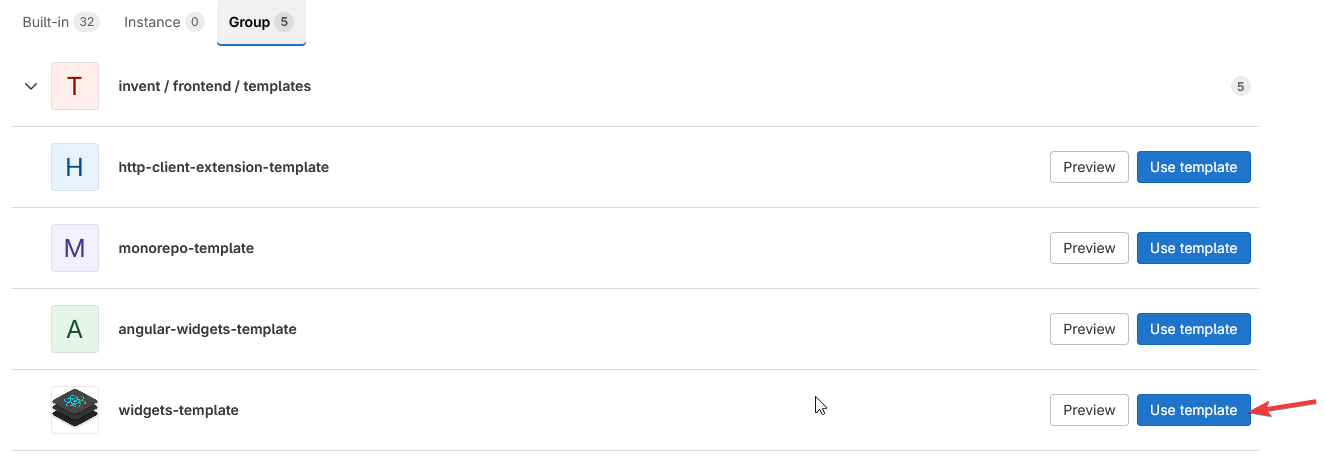
NOTE: This template is preconfigured with everything you need: the right folder structure, CI/CD setup, and integrations that work out-of-the-box in our environment.
-
Fill in the "Create from template" form.
- Provide a Project name using this format:
widgets-{vendor-name}-{widget-name}. - Click on Create project.
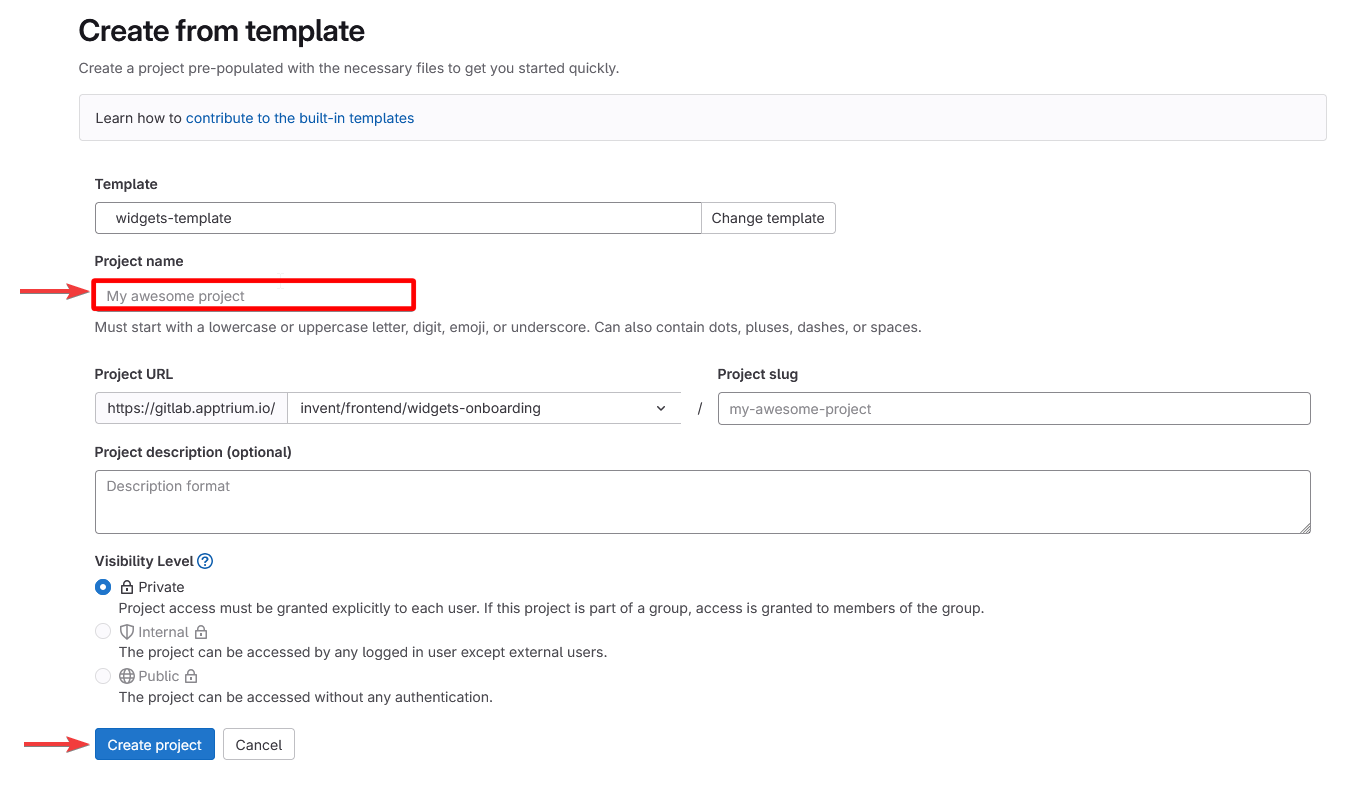
- Provide a Project name using this format:
-
Wait for the import to complete
Once the import completes, we'll have a fully functional starting point.