Dashboard Integration
This section covers how widgets integrate with the platform's Dashboard Composer and how to build your main widget component.
Understanding Widget Types
Widgets come in three types — Platform (0), Dashboard (1), and Universal (2). For what each type is and how widgetType is set, see Widget Overview → Widget Types. This page covers how a Dashboard widget is placed on and integrates with a dashboard.
Dashboard Composer and Micro App Library
The Dashboard Composer (within the Host application) is the interface where new widgets (called Micro Apps within the platform) are added to dashboards, widget settings are configured, and UI positions are set.
Adding Widgets to Dashboard
To edit a dashboard, open Board Settings (bottom-left of the dashboard) and click Edit — this puts the portal into Composer (edit) mode, where you can add and arrange widgets.
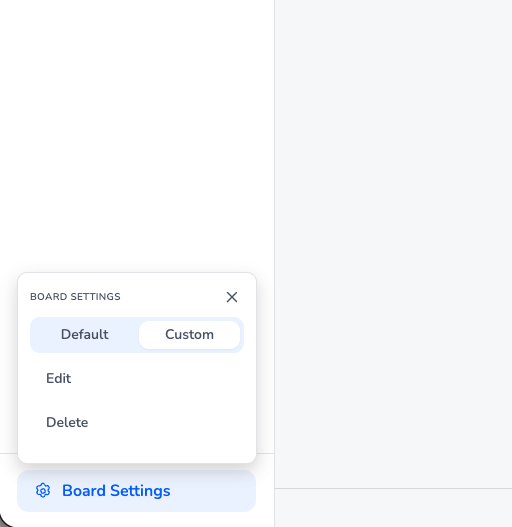
- Open the Dashboard Composer in the Host application
- Click the "Add micro app" button to open the Micro App Library
- Browse or search for widgets in the Micro App Library
- Select a widget to add it to your dashboard
- Configure widget settings through the settings panel
- Position and resize the widget using drag-and-drop
- Click Save when you're done to apply your changes
Dashboard Composer Interface
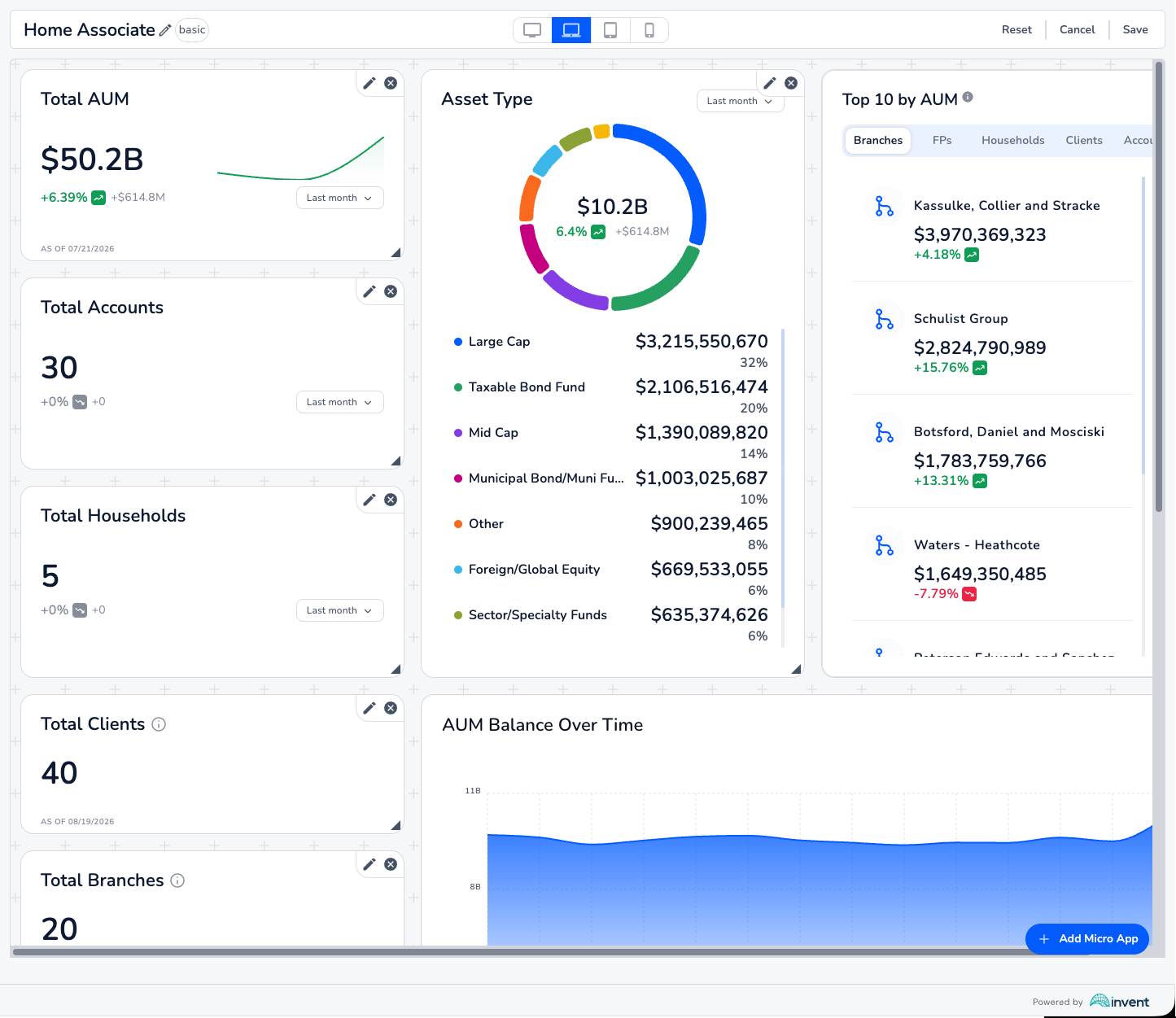 Dashboard Composer interface showing widget placement and configuration
Micro App Library
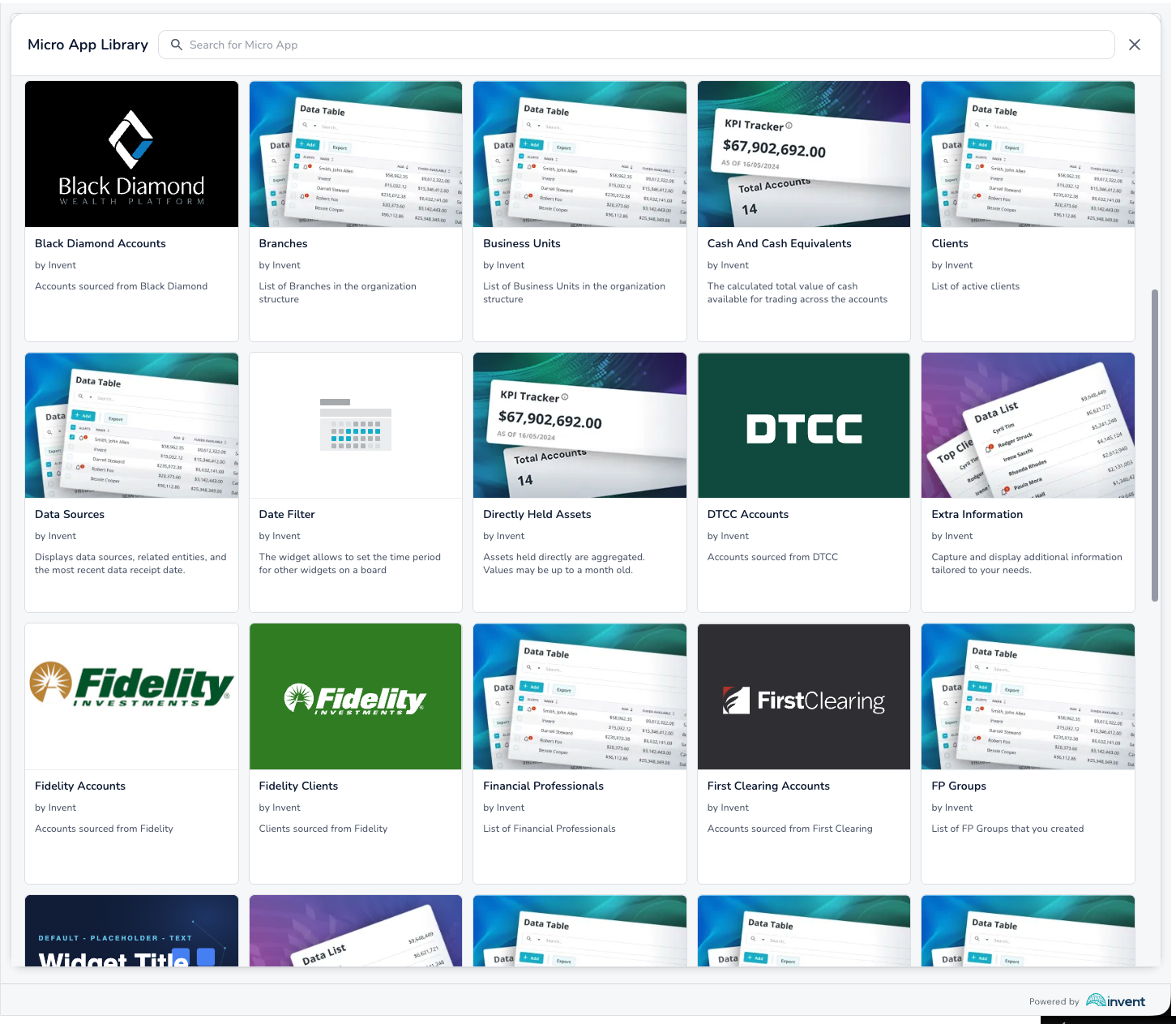 Micro App Library showing available widgets filtered by context rules
The Micro App Library displays widgets that are available based on the current dashboard's URL parameters and each widget's context rules (configured in widget-config.json). Widgets that don't meet the context requirements will not appear in the library.
Learn more about context rules in: Build Setup → Configuring Widget Metadata
Widget Presets (Derived Micro Apps)
What are Presets?
Widgets (also called Micro Apps within the platform) can have preconfigured settings called Presets or Derived Micro Apps. A preset is a widget settings configuration that is preconfigured in the ICP (Invent Control Panel) for a specific portal page.
Creating a Preset
To create a preset (derived micro app):
- Open the ICP (Invent Control Panel)
- Navigate to the desired portal page
- Go to the Micro Apps page
- In the micro apps list, click the three-dotted icon (⋮) at the end of the row
- Select "Create derived micro app"
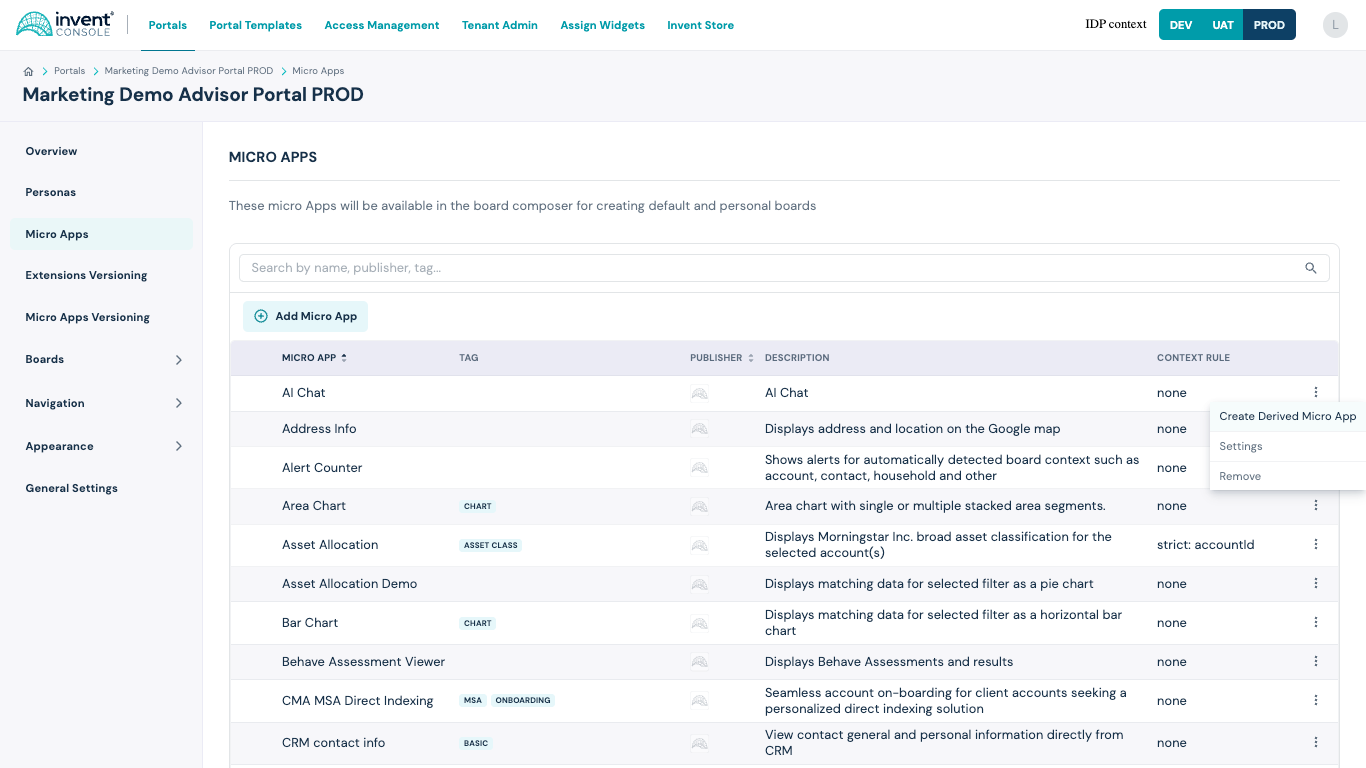 Creating a derived micro app in the ICP interface
- Configure the preset settings
- Save the preset
Using Presets
Once created, the preset will be listed in the Micro App Library within the Dashboard Composer. Users can add preconfigured widgets to their dashboards without manually setting up each configuration option.
Presets are especially useful for:
- Standard configurations used across multiple dashboards
- Complex settings that should be consistent
- Quick deployment of commonly used widget configurations
- Reducing configuration errors
For programmatic access to presets, see: Advanced Features → Preset Extension
Building the Main Widget Component
Widget Props Interface
Reference: Widget Specifications API
Create a TypeScript interface for your widget props:
src/types/widget-props.ts:
import type {
  HttpClientT,
  IPlatformMeta,
  UseShareValueT,
  UseSelectSharedValueT,
  UseDeleteSharedValueT,
  RemoteModuleT,
  ShowNotificationT,
  UseQueryDataT,
  UseDashboardNavigationInfoT,
} from "@invent/shared-types";

export interface IWidgetProps {
  // Platform meta information
  platformMeta: IPlatformMeta;

  // HTTP client for API calls
  httpClient: HttpClientT;

  // State sharing hooks
  useShareValue: UseShareValueT;
  useSelectSharedValue: UseSelectSharedValueT;
  useDeleteSharedValue: UseDeleteSharedValueT;

  // Widget settings (individual props, not grouped)
  title: string;
  titleTooltip?: string;
  apiUrl: string;
  refreshInterval: number;
  showTrend: boolean;
  enableNotifications: boolean;

  // Remote module rendering
  remoteModule: RemoteModuleT;

  // Notifications
  showNotification: ShowNotificationT;

  // React Query integration
  useQueryData: UseQueryDataT;

  // Dashboard navigation
  useDashboardNavigationInfo: UseDashboardNavigationInfoT;

  // Extensions
  getExtension: (name: string) => any;
  installedExtensions: any[];

  // Layout props
  layout?: {
    w: number;
    h: number;
    x: number;
    y: number;
  };

  // Widget instance ID
  dashboardWidgetInstanceId: string;
}
IPlatformMeta Interface
Reference: @invent/shared-types
interface IPlatformMeta {
  storeWidgetsById: Record<string, IWidgetMetadata<Record<string, unknown>>>;
  platformWidgetsById: Record<string, IPlatformWidget>;
  currentDashboardId?: string;
  currentDashboard: IDashboard | undefined;
}
Main Widget Component Example
src/{widget-name}/{widget-name}.tsx:
import React, { useEffect } from 'react';
import { useQuery } from '@tanstack/react-query';
import { path } from 'ramda';
import { WidgetRootWrapper, WidgetHeader, WidgetLoading } from './components';
import { Card, CardContent } from '@invent/wl-ui-kit-next/ui';
import type { ICloudProps, ISharedState } from '@invent/shared-types';

interface IKpiData {
  revenue: number;
  users: number;
  conversion: number;
  timestamp: number;
}

// Read this widget's data out of shared dashboard state
const kpiDataSelector = (state: ISharedState) => path<IKpiData | undefined>(['kpiData'], state);

export interface IKpiTrackerProps extends ICloudProps<unknown> {
  apiUrl: string;
  title?: string;
  titleTooltip?: string;
  refreshInterval?: number;
  showTrend?: boolean;
  enableNotifications?: boolean;
}

const KpiTrackerInner = ({
  httpClient,
  apiUrl,
  title,
  titleTooltip,
  refreshInterval = 30,
  showTrend,
  enableNotifications,
  useShareValue,
  useSelectSharedValue,
  showNotification,
  getExtension,
  dashboardWidgetInstanceId
}: IKpiTrackerProps) => {
  const shareValue = useShareValue();
  const sharedKpiData = useSelectSharedValue(kpiDataSelector);

  const { data, isLoading, error } = useQuery({
    queryKey: [`${apiUrl}/kpi`, dashboardWidgetInstanceId],
    queryFn: () =>
      httpClient(`${apiUrl}/kpi`, { traceId: `kpi-tracker-${dashboardWidgetInstanceId}` }),
    enabled: Boolean(apiUrl),
    refetchInterval: refreshInterval * 1000
  });

  // Publish to shared state so other widgets can read it
  useEffect(() => {
    if (data) shareValue(['kpiData'], data);
  }, [data, shareValue]);

  // Real-time updates over the platform websocket extension
  useEffect(() => {
    const wsExt = getExtension('@invent/bff-ws-ext');
    const id = `kpi-${dashboardWidgetInstanceId}`;
    wsExt?.subscribe?.('KpiUpdate', id, (msg: { message: IKpiData }) => {
      shareValue(['kpiData'], msg.message);
      if (enableNotifications) showNotification('info', 'KPI data updated');
    });
    return () => wsExt?.unsubscribe?.('KpiUpdate', id);
  }, [getExtension, dashboardWidgetInstanceId, enableNotifications]);

  useEffect(() => {
    if (error) showNotification('error', 'Failed to load KPI data');
  }, [error, showNotification]);

  if (isLoading) return <WidgetLoading />;

  const kpi = (data as IKpiData) ?? sharedKpiData;
  const metrics = [
    { label: 'Revenue', value: `$${kpi?.revenue.toLocaleString() ?? '—'}`, trend: '↑ 12%', up: true },
    { label: 'Users', value: kpi?.users.toLocaleString() ?? '—', trend: '↑ 8%', up: true },
    { label: 'Conversion', value: `${kpi?.conversion.toFixed(2) ?? '—'}%`, trend: '↓ 3%', up: false }
  ];

  return (
    <div className="flex h-full w-full flex-col bg-background text-foreground">
      <WidgetHeader title={title} titleTooltip={titleTooltip} />
      <div className="grid flex-1 gap-3 p-4 [grid-template-columns:repeat(auto-fit,minmax(150px,1fr))]">
        {metrics.map((m) => (
          <Card key={m.label}>
            <CardContent className="flex flex-col gap-1 p-4">
              <span className="text-xs text-muted-foreground">{m.label}</span>
              <span className="text-2xl font-bold text-primary">{m.value}</span>
              {showTrend && (
                <span className={m.up ? 'text-sm text-success' : 'text-sm text-destructive'}>
                  {m.trend}
                </span>
              )}
            </CardContent>
          </Card>
        ))}
      </div>
      <p className="px-4 pb-2 text-right text-xs text-muted-foreground">
        Last updated: {kpi?.timestamp ? new Date(kpi.timestamp).toLocaleTimeString() : 'N/A'}
      </p>
    </div>
  );
};

const KpiTracker = (props: IKpiTrackerProps) => (
  <WidgetRootWrapper>
    <KpiTrackerInner {...props} />
  </WidgetRootWrapper>
);

export default KpiTracker;
Platform features in this example
| Feature | How | Learn more |
|---|---|---|
| Data fetching | httpClient + React Query | Core Features |
| Shared state | useShareValue / useSelectSharedValue | Advanced Features |
| Real-time updates | getExtension (WebSocket) | Advanced Features |
| Notifications | showNotification | Core Features |
| OAuth authentication | proxy-app-setup AI skill | AI Assisted Dev → Adding OAuth |